
POP Setup
Configuring Thunderbird for POP3 service (recommended)
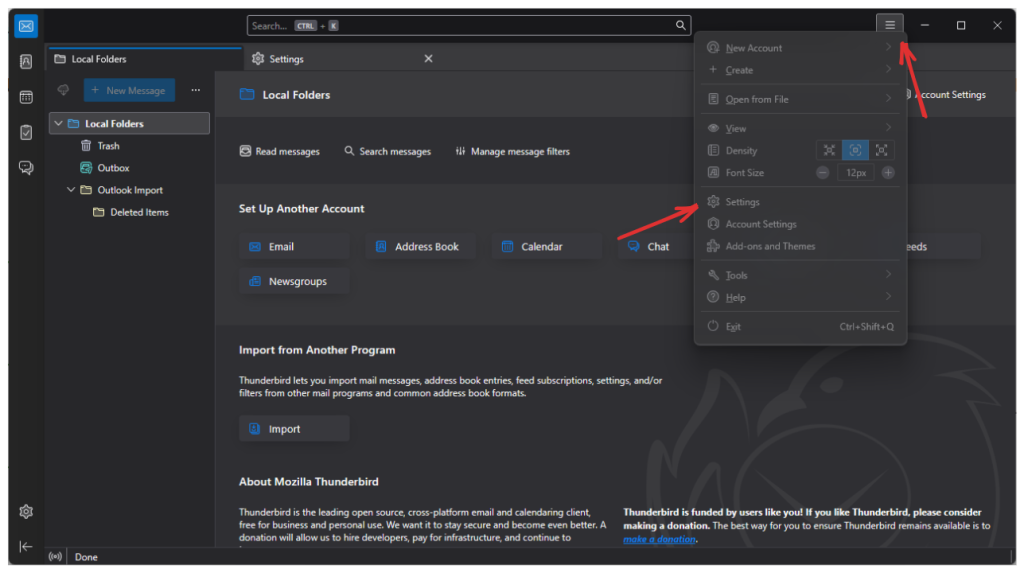
1. In the top right corner select the menu button (three dashed lines) > “Account Settings“.
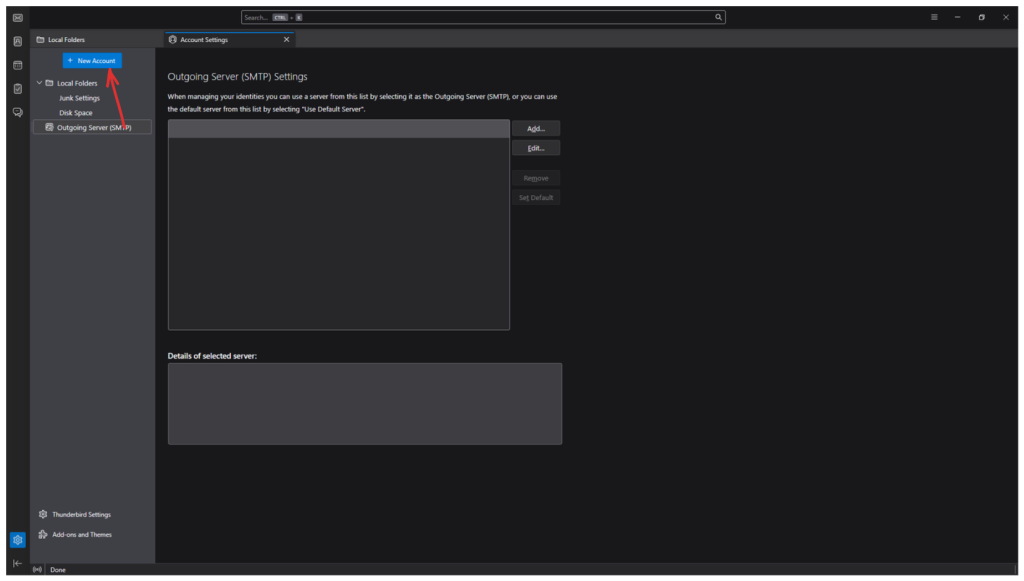
2. A new tab will appear. On the top left select “+ New Account” > Then select ” Mail Account…“
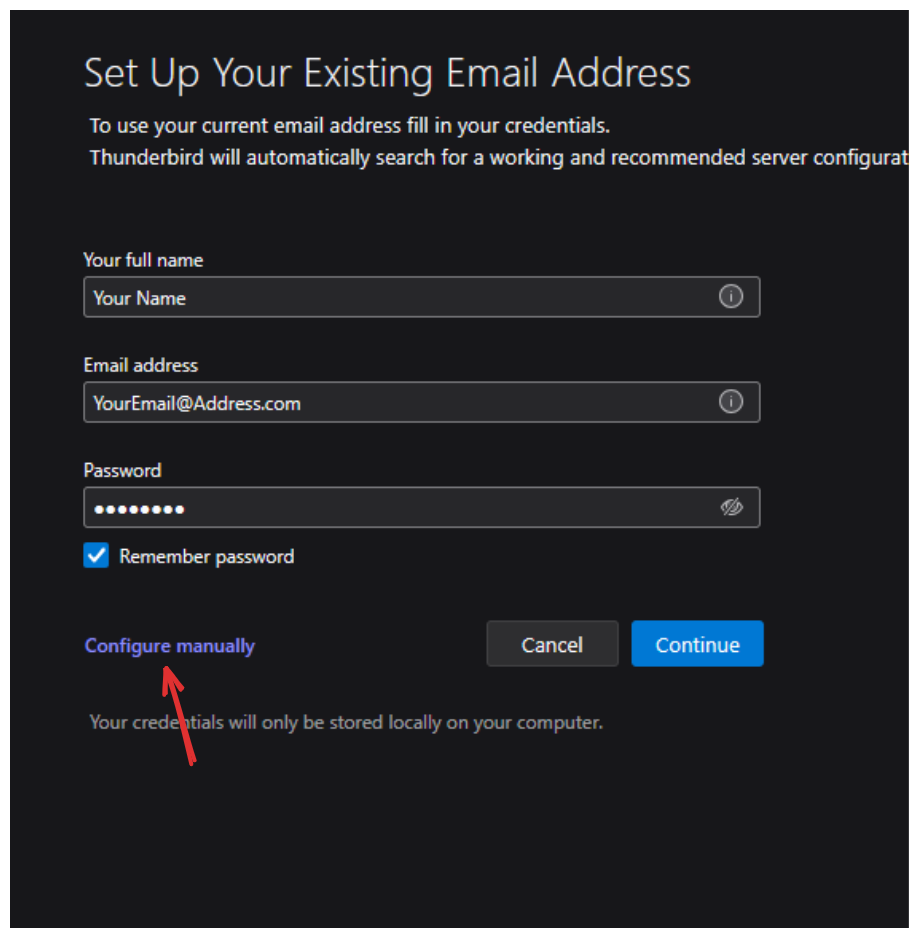
3. Insert the name you would like displayed when sending emails, full email address, and password. Then click on “Configure manually“.
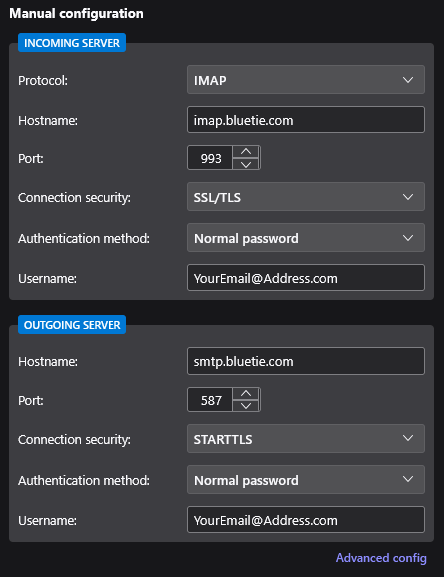
4. Select either the IMAP or POP protocol and follow the configuration settings below.
– IMAP is good for keeping multiple devices in sync (recommended)
– POP downloads emails to the one device and removes them from the server
If IMAP was selected check to make sure the following matches:
Incoming server:
– Protocol: IMAP
– Hostname: imap.bluetie.com
– Port: 993
– Connection Security: SSL/TLS
– Authentication method: Normal password
– Username: your full email address
Outgoing server:
– Hostname: smtp.bluetie.com
– Port: 587
– Connection Security: STARTTLS
– Authentication method: Normal password
– Username: your full email address
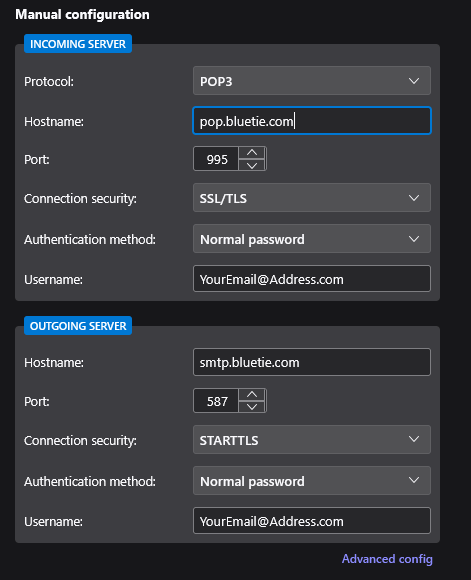
If POP3 was selected check to make sure the following matches:
Incoming server:
– Protocol: POP3
– Hostname: pop.bluetie.com
– Port: 995
– Connection Security: SSL/TLS
– Authentication method: Normal password
– Username: your full email address
Outgoing server:
– Hostname: smtp.bluetie.com
– Port: 587
– Connection Security: STARTTLS
– Authentication method: Normal password
– Username: your full email address
5. Select next. If you would like to connect linked services you can do this now, otherwise, select ‘Finish’.