
iPhone/iPad: setup email
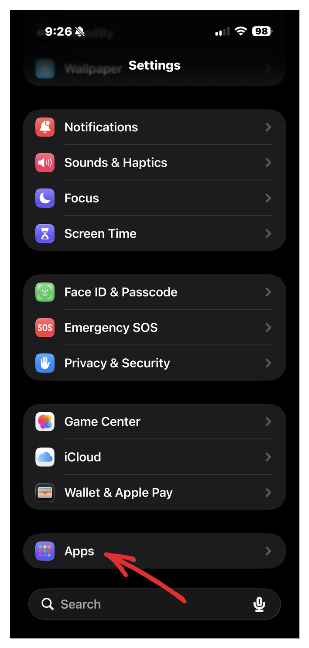
1. From the main menu go to “Settings” and then select “Apps”.
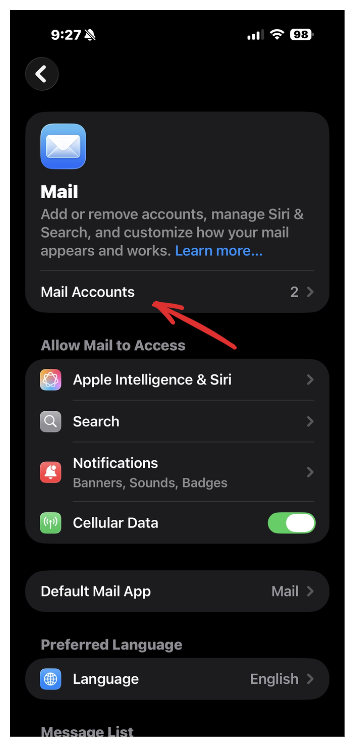
2. Scroll down the list of apps, and select “Mail”. Then select “Mail Accounts”.
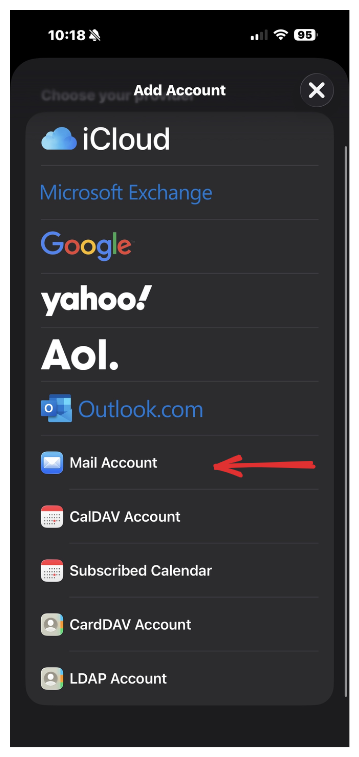
3. Select “Add Account” > “Choose from a list.” > “Add Other Account” > “Mail Account”.
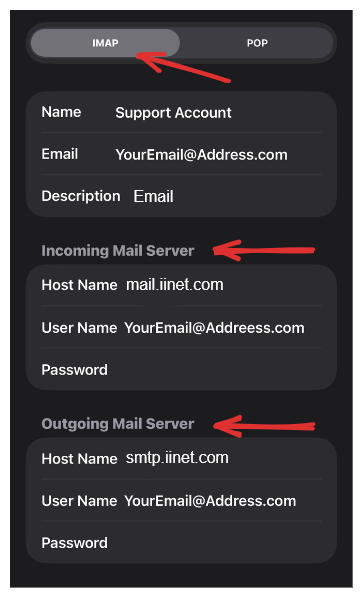
4. Select IMAP from the top and fill in the information:
– Name: your name
– Email: your full email address
– Description: anything you’d like
Incoming Mail Server:
– Host Name: mail.iinet.com
– User Name: your full email address
– Password: your password
Outgoing Mail Server:
– Host Name: smtp.iinet.com
– User Name: your full email address
– Password: your password
Once complete select “Next”
5. Make sure “Mail” is toggled on, and click save. Your email should be set up now.