
This tutorial will show you how to setup your email account on the Gmail app with IMAP settings. Images are taken from a One Plus 9.
Jump to:
– Send/receive error
– If you do not have at least one email signed in then Gmail will prompt you for a login right away. Skip to step 2.
1. If you have at least one email signed into the Gmail app. Open the Gmail app.
On the top right of the screen select the circle in the search bar. This will open up a new screen and select “Add another account”
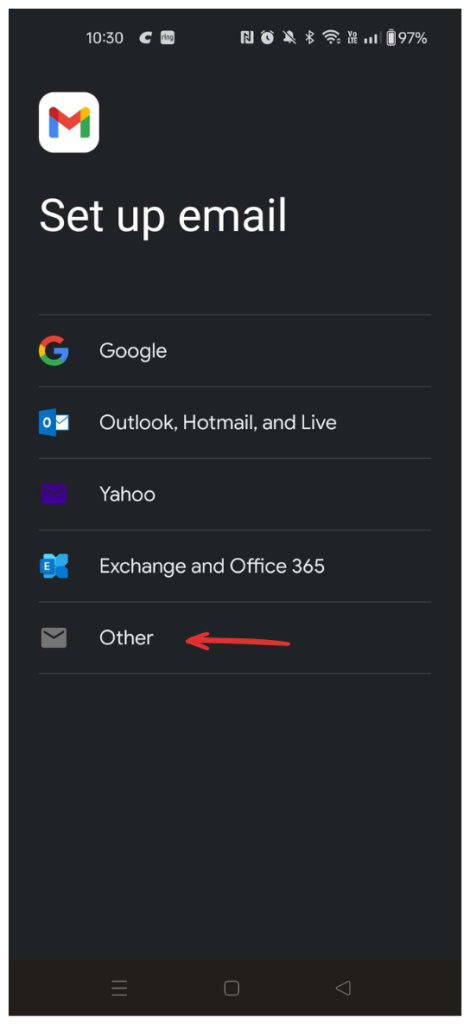
2. Unless you have an @easystreet.net email account select “Other”
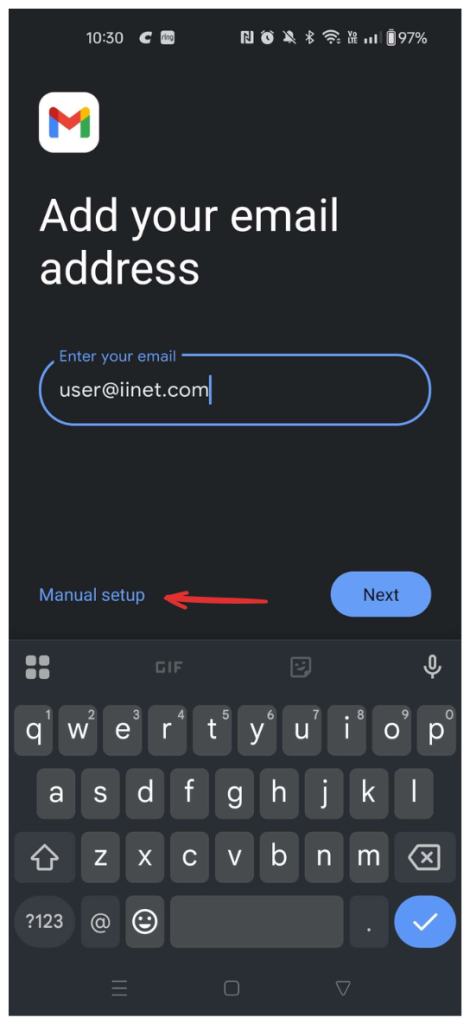
3. Enter your full email address then select the option for “MANUAL SETUP” before hitting the “NEXT” button.
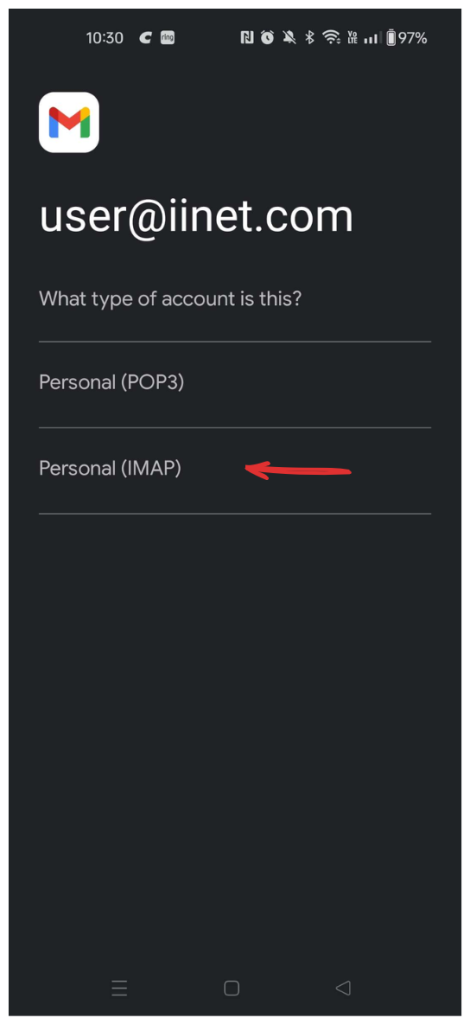
4. It will ask the account type. This tutorial will help you setup the email as IMAP
5. It will then prompt you for your incoming server settings.
– Username: Your full email address
– Password: Your password
– Server: mail.iinet.com
– NEXT
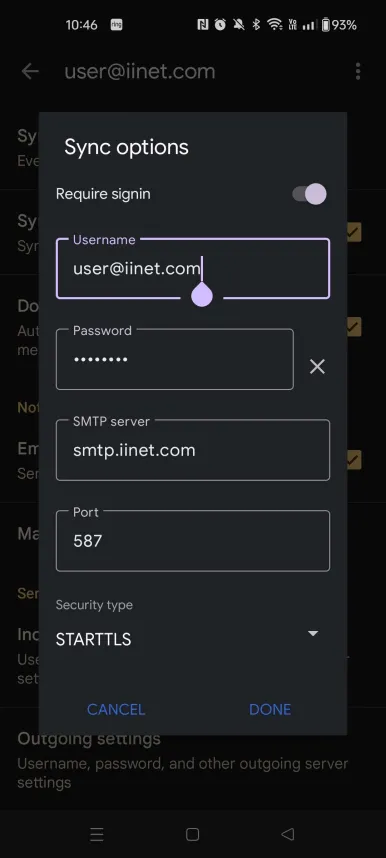
6. It will then prompt you for your outgoing server settings.
– Toggle for “Require signin”: ON
– Username: Your full email address
– Password: Your password
– SMTP Server: smtp.iinet.com
– NEXT
Your email should now be setup!
If you are still having issues with sending/receiving please follow the steps below.
1. Open up your Gmail app
2. On the top right of the screen select the circle in the search bar. This will open up a new screen and select “Manage accounts on this device”. Select the email having issues
3. Select Account settings > select email having issues. You should now be on the settings page for your email
4. Scroll down to the bottom of the page until you see “Server settings”.
5. Your Incoming settings should look like the following:
– Username: full email
– Password: your password
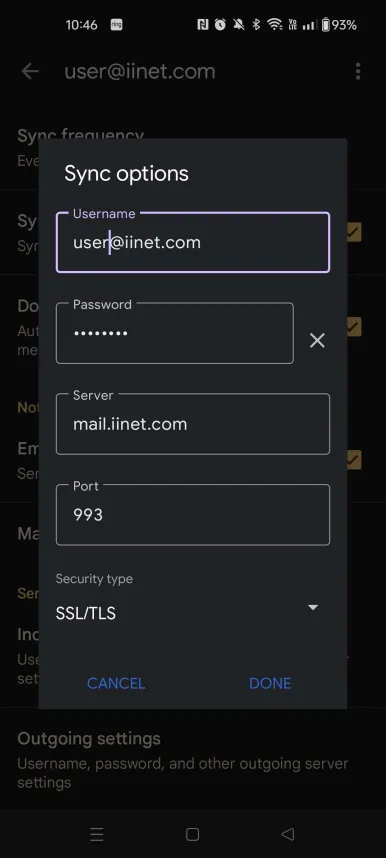
6. Your Outgoing settings should look like the following:
– Username: full email
– Password: your password
Your email should now be properly configured!